
Communication

Communication Channels at Rockcc

The Flocknote logo shows a blue sheep next to the word 'flocknote.' The logo is on a white background with a blue border.

FLOCK NOTE

At RockCC, we use a platform called "Flock Note" to connect and communicate with the congregation through email and text. If you want to receive communication from the church, please follow the sign-up instructions below.

*App available for iPhone.
The Church Center logo, featuring a stylized house icon and white lowercase text, is displayed on a blue-to-green gradient background.

CHURCH CENTER

Church Center is a platform that RockCC uses for a variety of purposes. You can register for events through the church center app, manage your profile, and donate online. You can also confirm or decline serving dates through the Church Center app.

*App available for iPhone & Android.

The Planning Center Services logo on a green background. Text reads: Planning Center Services. Service planning and scheduling.

PLANNING CENTER

Planning Center Services is a platform we use to schedule and manage volunteers. As of April 2023, Children's Ministry, Tech, Praise Band, and KidsCare use Planning Center for scheduling and serving.

*App available for iPhone & Android.

How to Sign Up for Flock Note

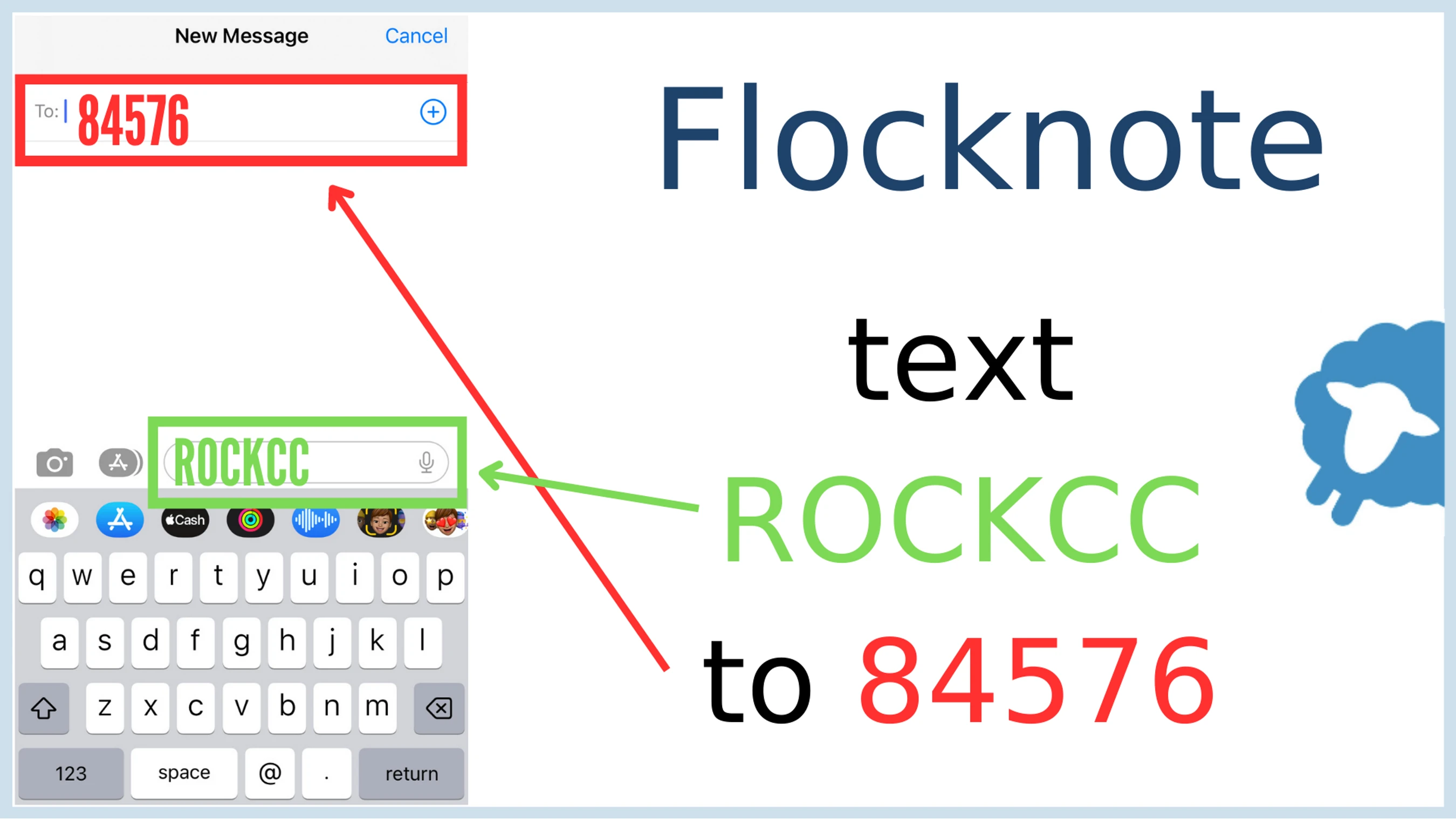
An instructional graphic showing how to join Flocknote by texting the word ROCKCC to the number 84576, with examples on a smartphone screen.

STEP 1

Click the link below OR text ROCKCC to 84576.

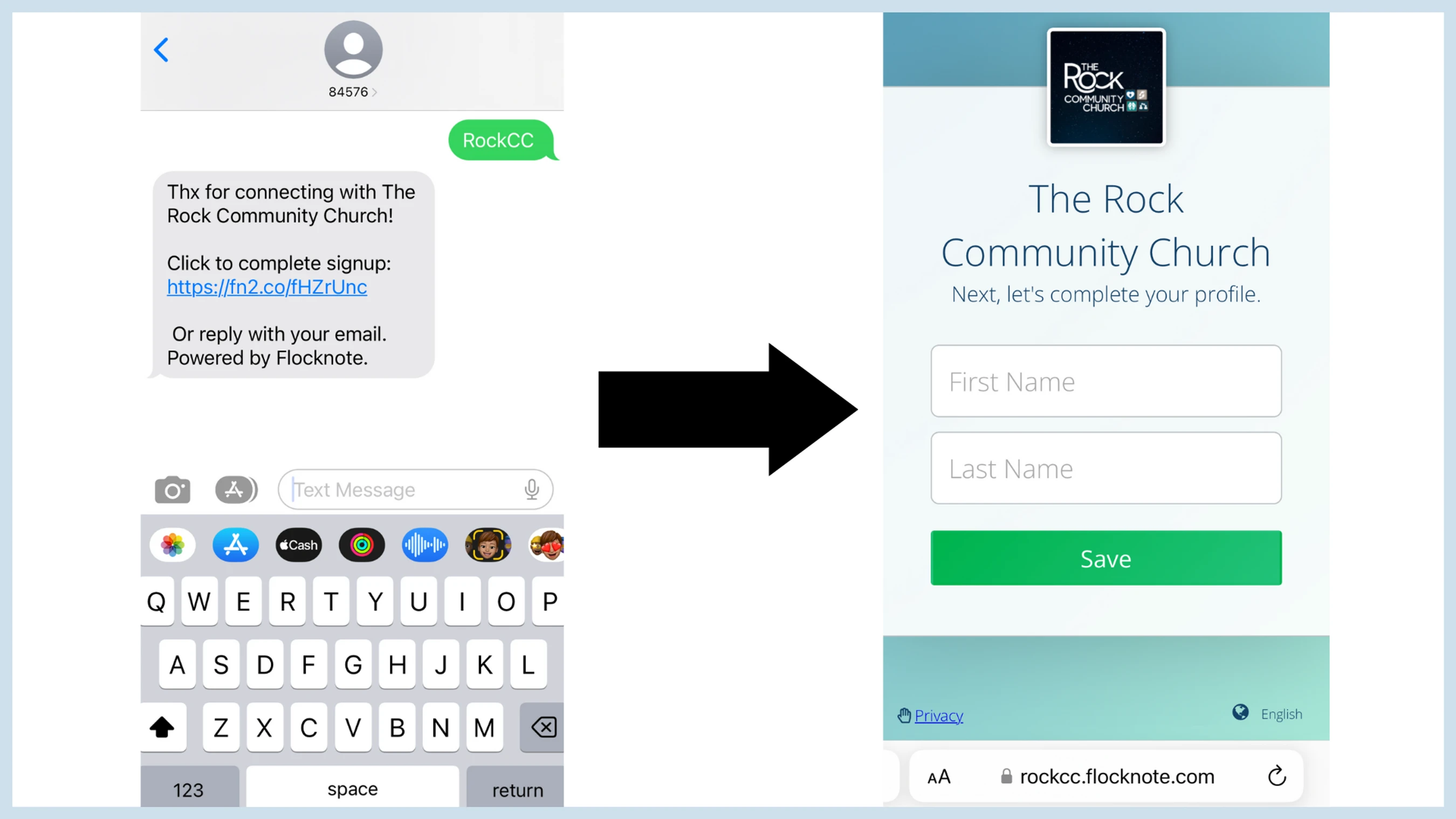
If you text in, you will receive a link back. Click on that link.

STEP 2

Fill out your name, email address, and phone number. Your screen should look similar to the presented image.

Please make sure to include BOTH your email and phone number.

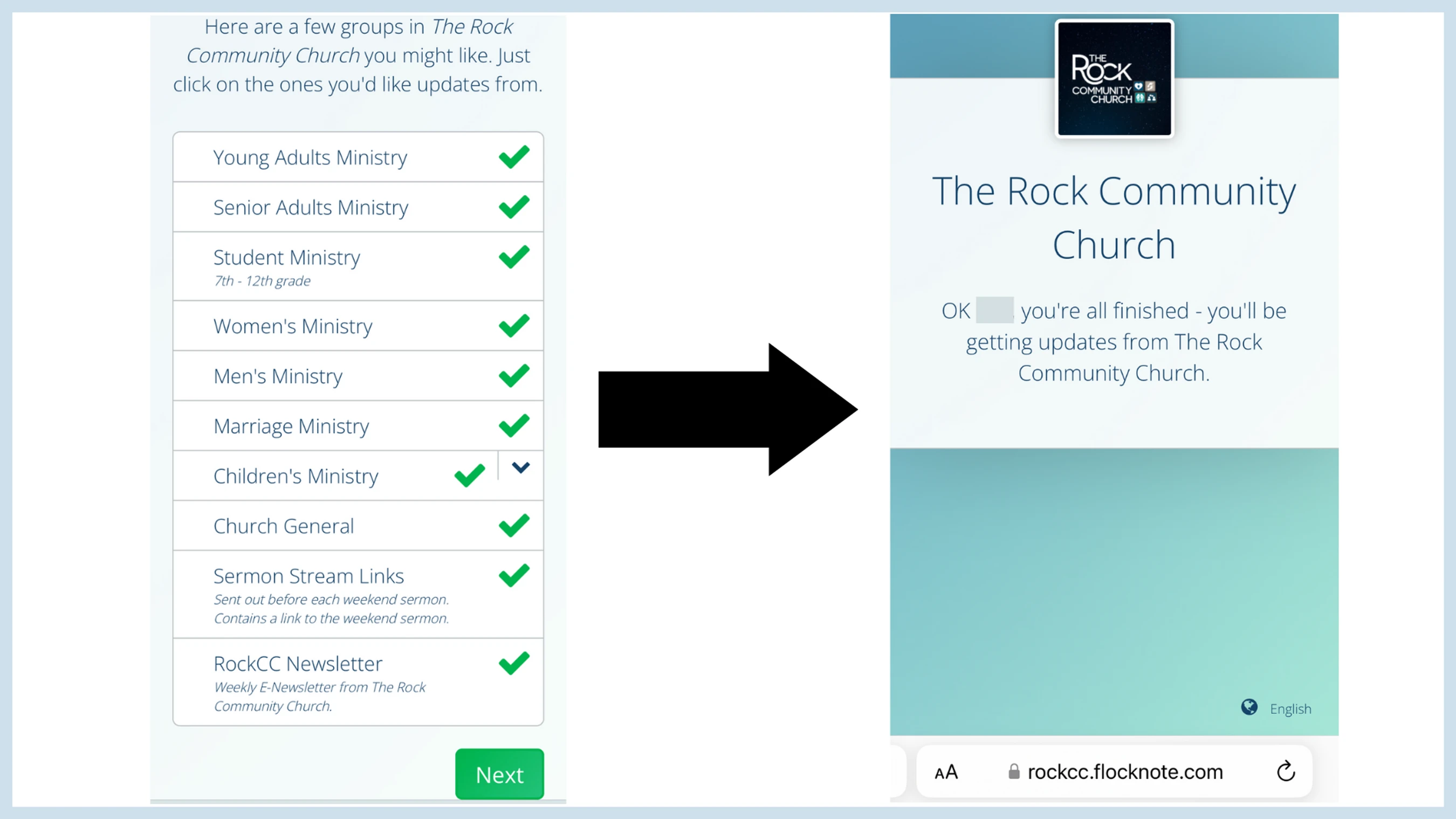
A two-step process showing a user selecting ministry groups on a church website, followed by a confirmation screen indicating the subscription was successful.

STEP 3

  • You will be presented with several communication lists.
  • Click on the lists that you want communication from.
  • Click the green "Next" button.
  • You will see a confirmation screen. Then you're signed up!

Flock Note App

The Flock Note app will allow you to manage your lists and opt out/opt-in anytime! It is unnecessary, but it is an excellent resource if you delete the messages on your phone frequently.

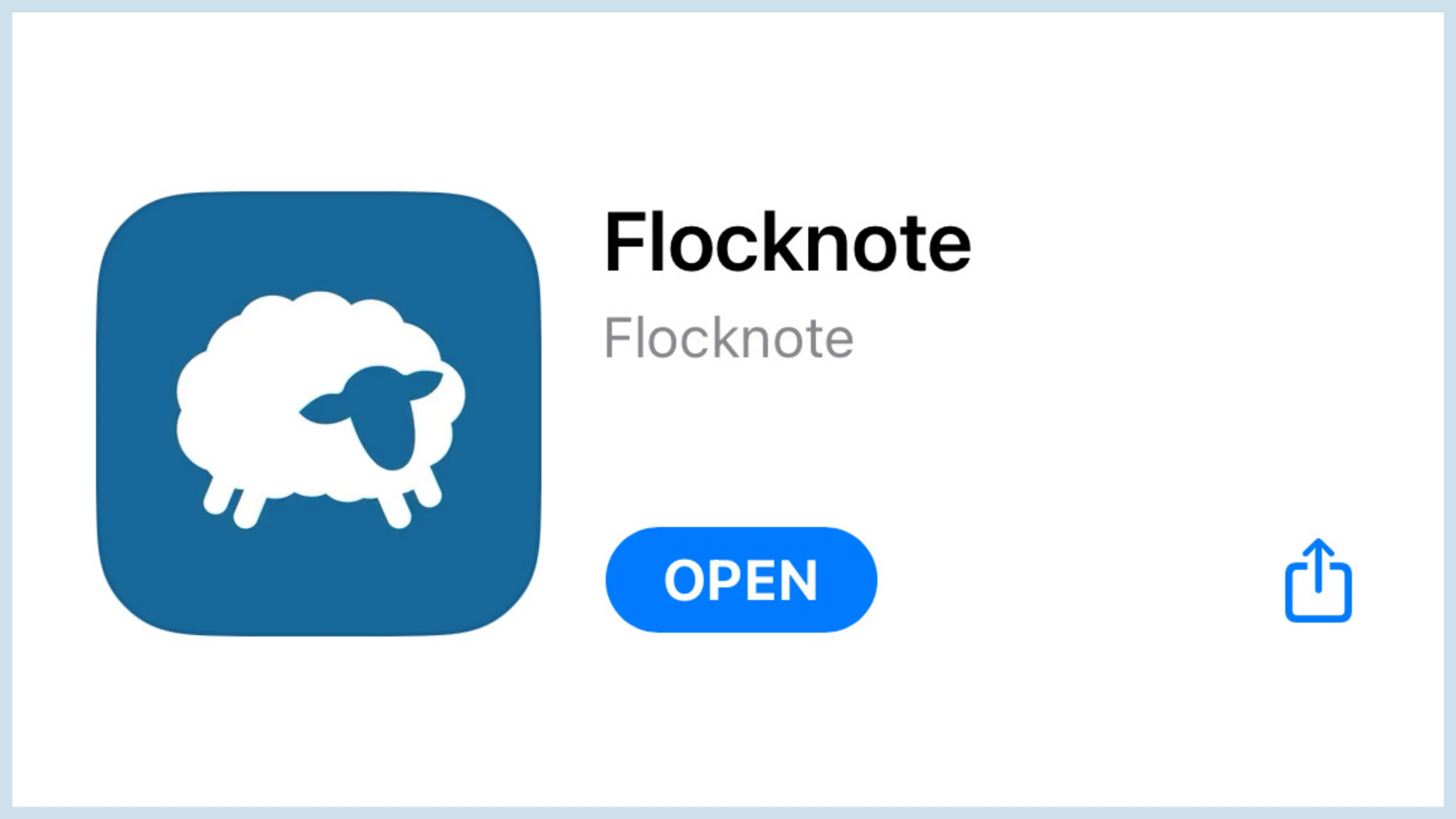
A screenshot of the Flocknote app in an app store. The icon is a white sheep on a blue background. An 'OPEN' button indicates the app is installed.

STEP 1 & 2

Search "Flocknote" in the app store on your phone. Download the app with the blue sheep on it (see photo).

Follow the on-screen instructions to obtain a login code.

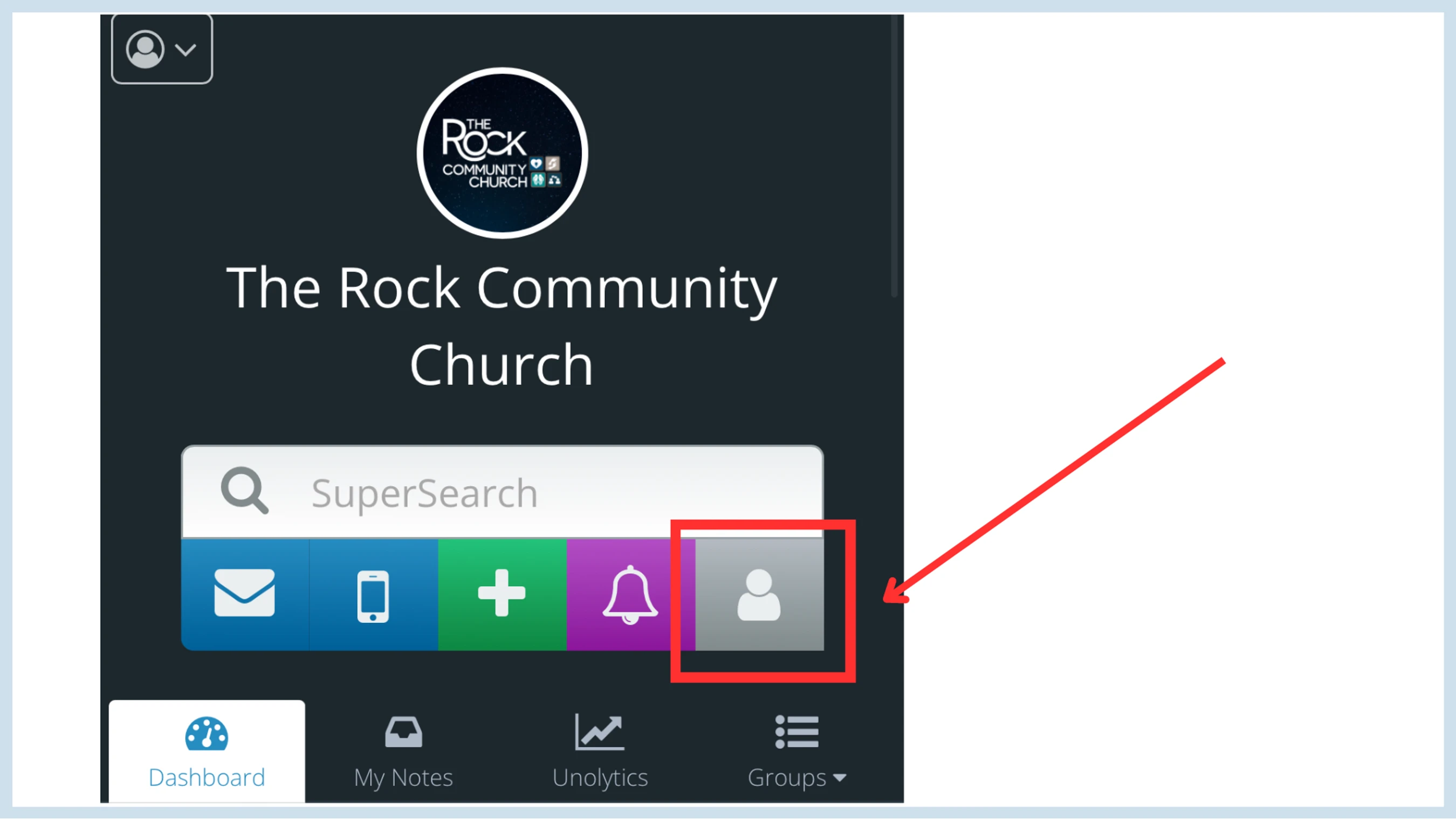
A screenshot of The Rock Community Church app menu. A red box and arrow highlight the 'People' icon, a gray button with a white person silhouette.

STEP 3

Once you have logged into your account, select this grey icon (see photo).

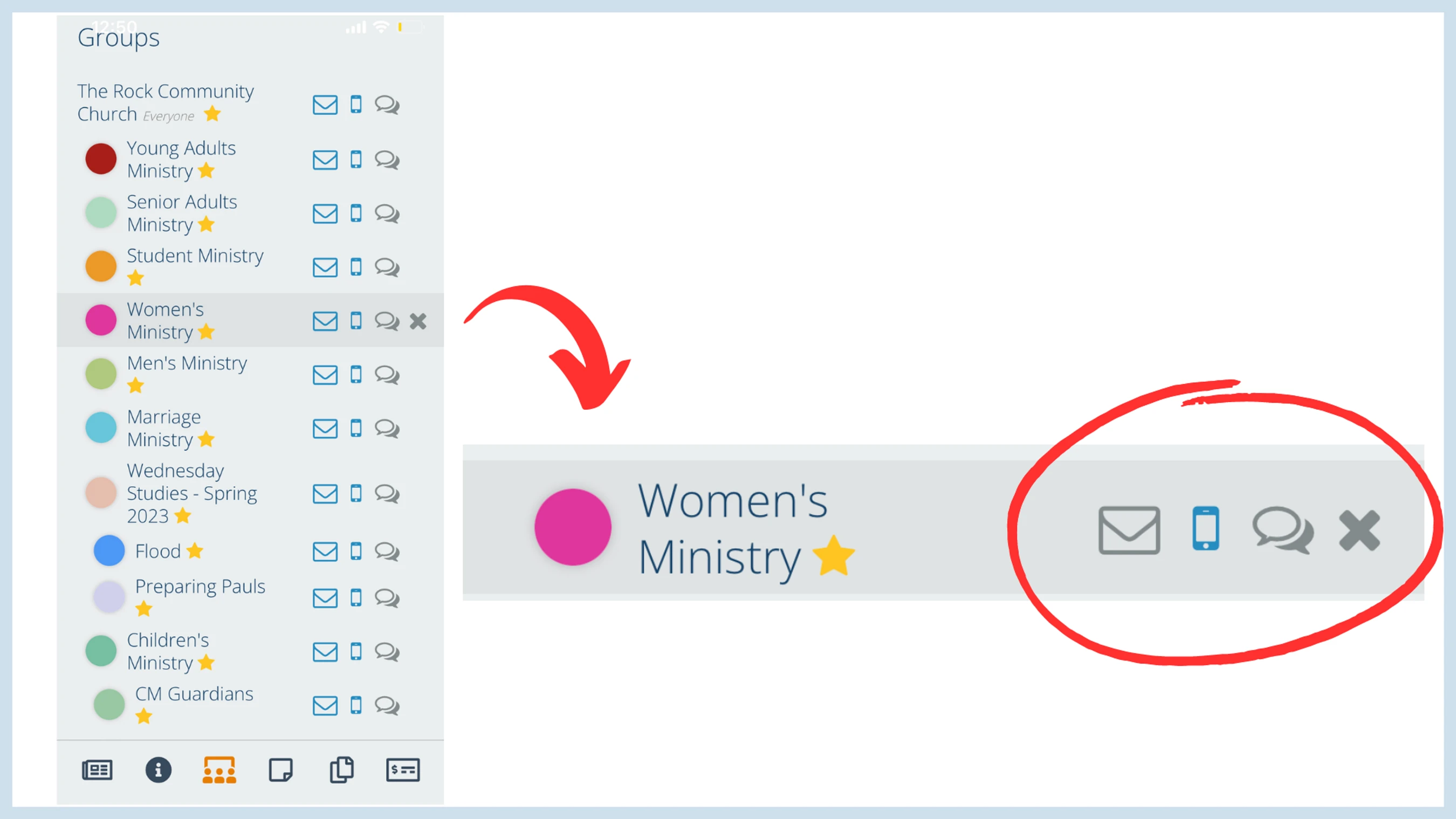
Screenshot of a group management screen. The 'Women's Ministry' group is highlighted, showing action icons to email, text, chat, or leave the group.

STEP 4

In this tab, you can manage the lists you have signed up for. If you'd like to stop receiving emails or texts from that list, click the corresponding icon so it turns grey. To turn it back on, click it again so it appears blue. To remove yourself altogether from the list, click the "X."

Have Questions?
We'd Love to Help